

Integraciones
Connect VibeSell to Copilot
Add VibeSell as a tool in a Copilot Studio agent, so Copilot can answer from your meetings, accounts and pipeline, for example to draft a QBR from a quarter of calls.
VibeSell is an MCP server, the open standard for connecting AI assistants to other systems. Microsoft Copilot reaches MCP servers through Copilot Studio: you build an agent there, add VibeSell as one of its tools, and the agent can then search your calls, read your accounts and deals, and open the briefs and summaries VibeSell has written. It is the same connection as our Claude and ChatGPT guides, with the same data and permissions.
What you need before you start
- A VibeSell account.
- Copilot Studio. A Copilot Studio licence or trial, and permission to create agents in a Power Platform environment.
- Your admin's data policy allows it. Copilot Studio reaches MCP servers through Power Platform connectors, so a data policy that blocks custom connectors also blocks VibeSell. If the option is missing, ask your Power Platform admin.
The only thing you type is this URL:
https://api.vibesell.ai/connect
How do you connect VibeSell to a Copilot Studio agent?
It takes about three minutes.
Open or create an agent
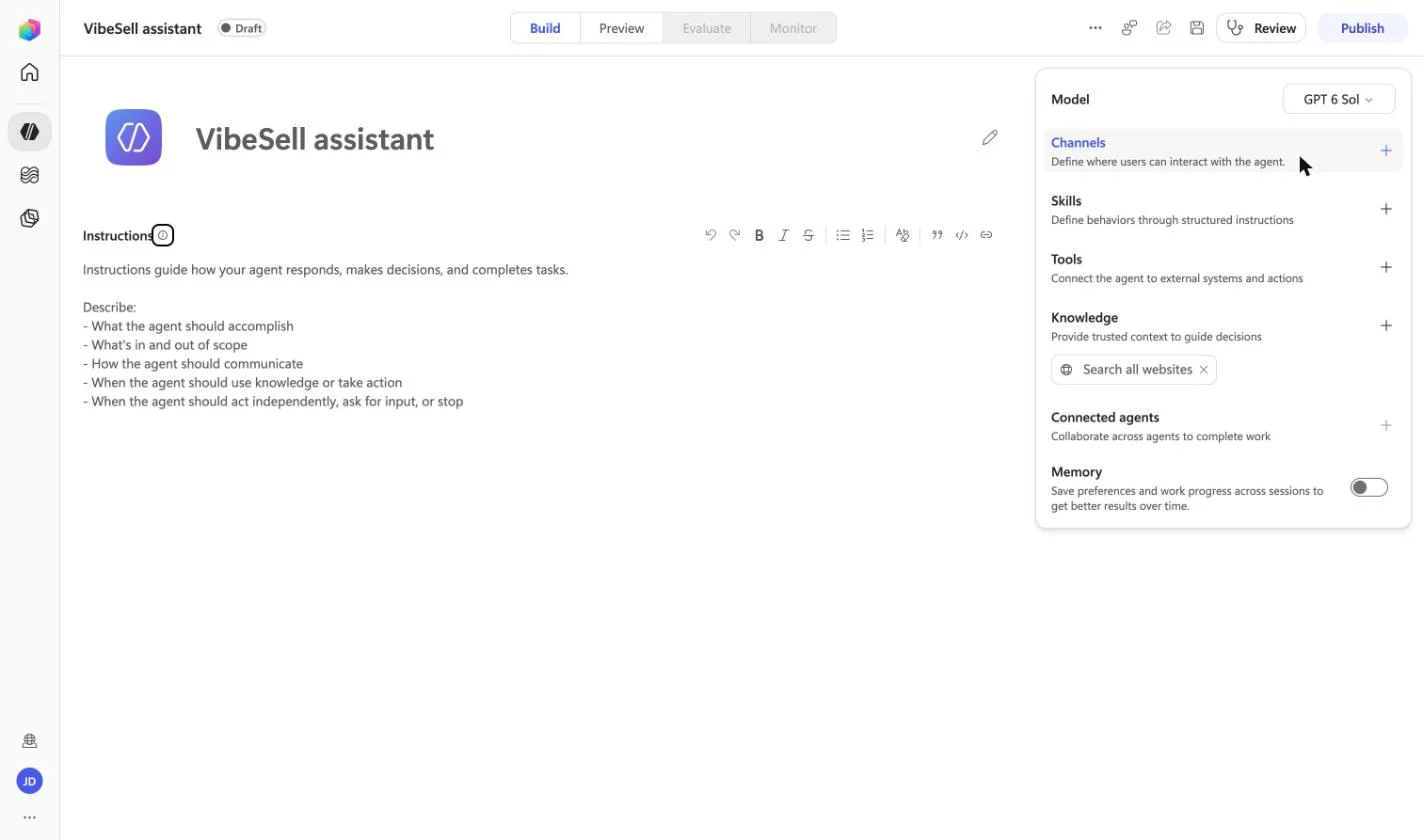
Go to copilotstudio.microsoft.com, pick your environment, and open the agent you want to give VibeSell to, or create a new one with New agent.
Add a Model Context Protocol tool
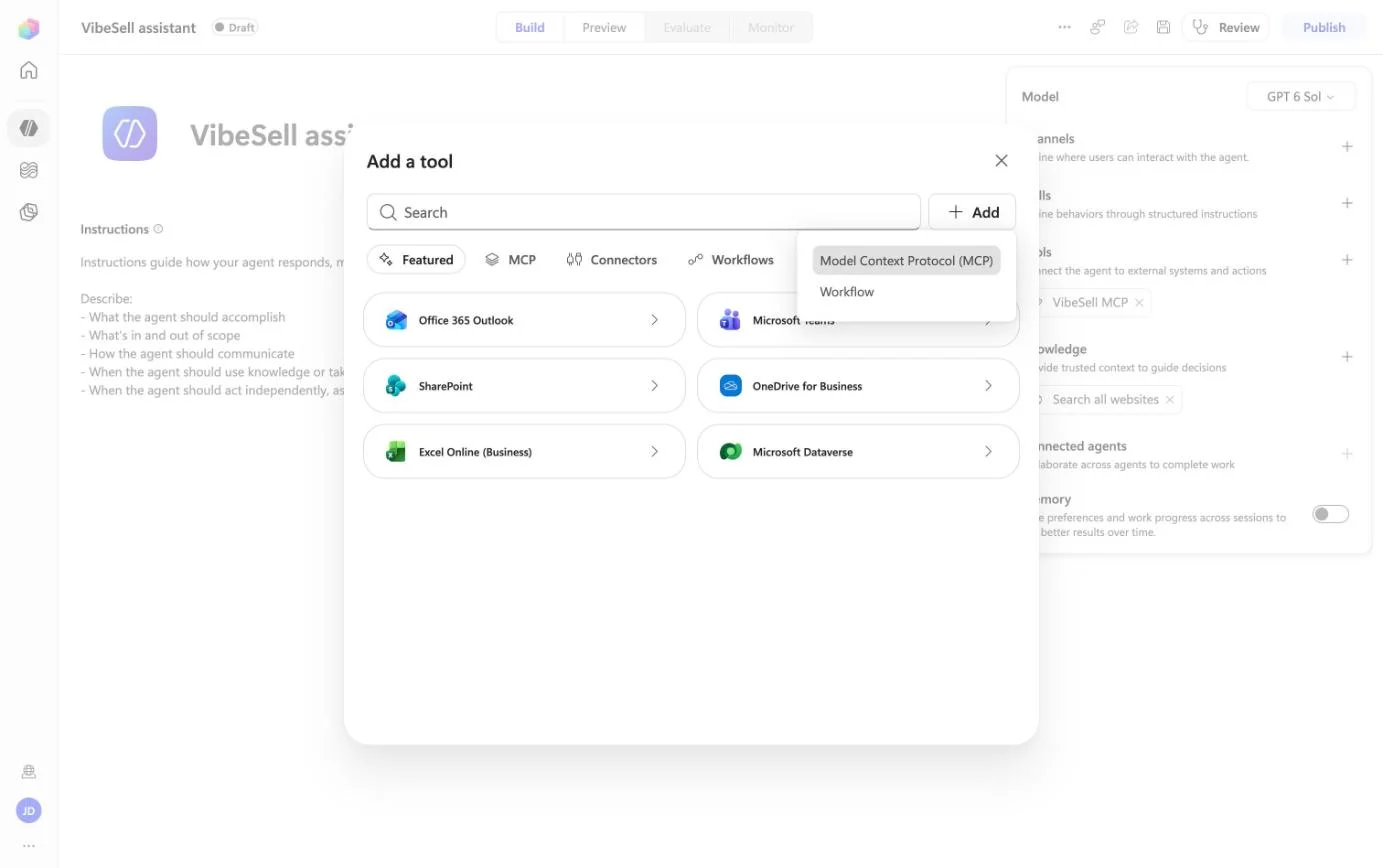
Select the + next to Tools. In Add a tool, select + Add, then Model Context Protocol (MCP).
Describe the server and choose OAuth 2.0
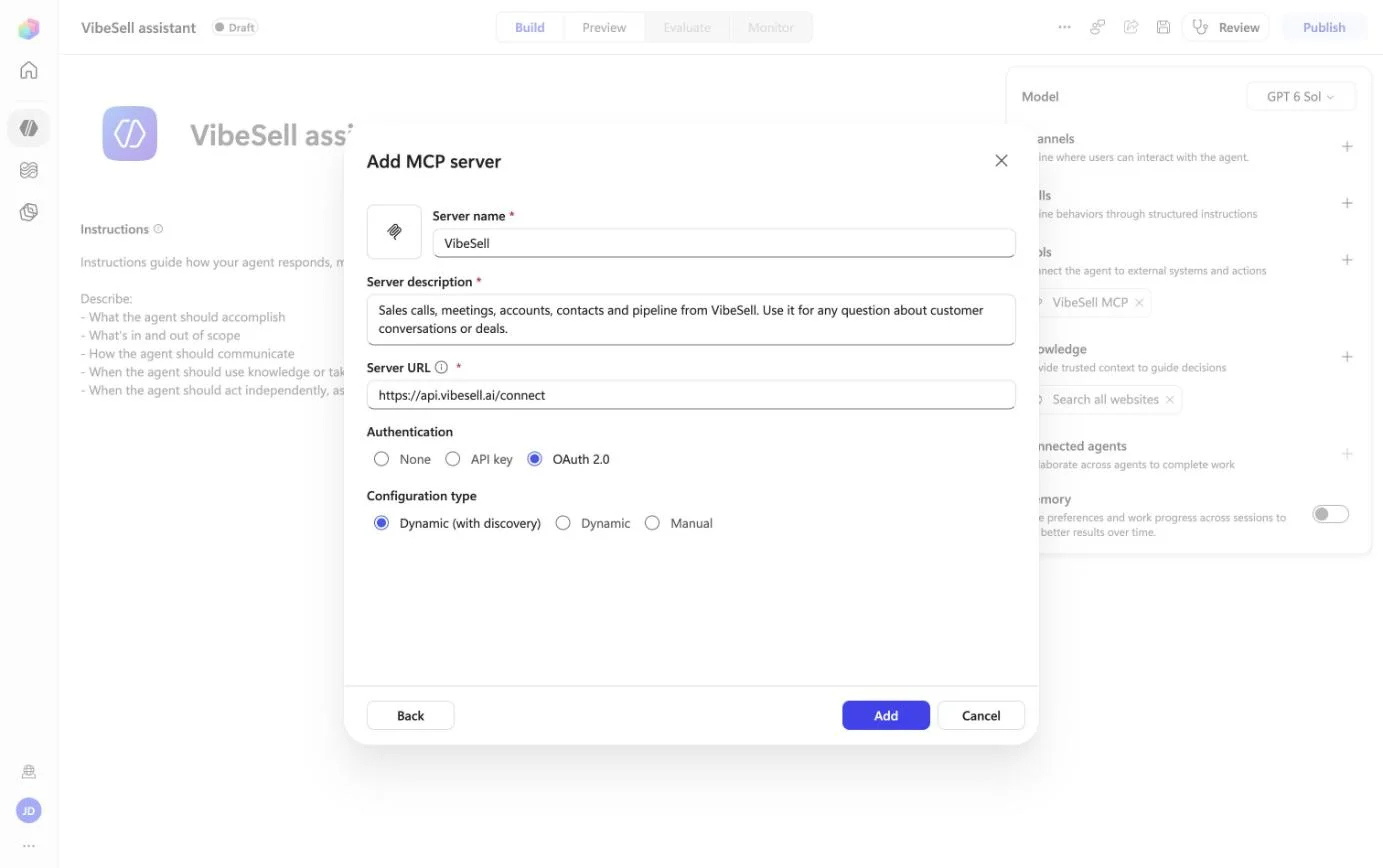
Fill in Server name with VibeSell and Server URL with https://api.vibesell.ai/connect. For Server description, say what it is for, because the agent reads it to decide when to call VibeSell, for example: Sales calls, meetings, accounts, contacts and pipeline from VibeSell. Use it for any question about customer conversations or deals. Under Authentication choose OAuth 2.0, keep Dynamic (with discovery), and select Add.
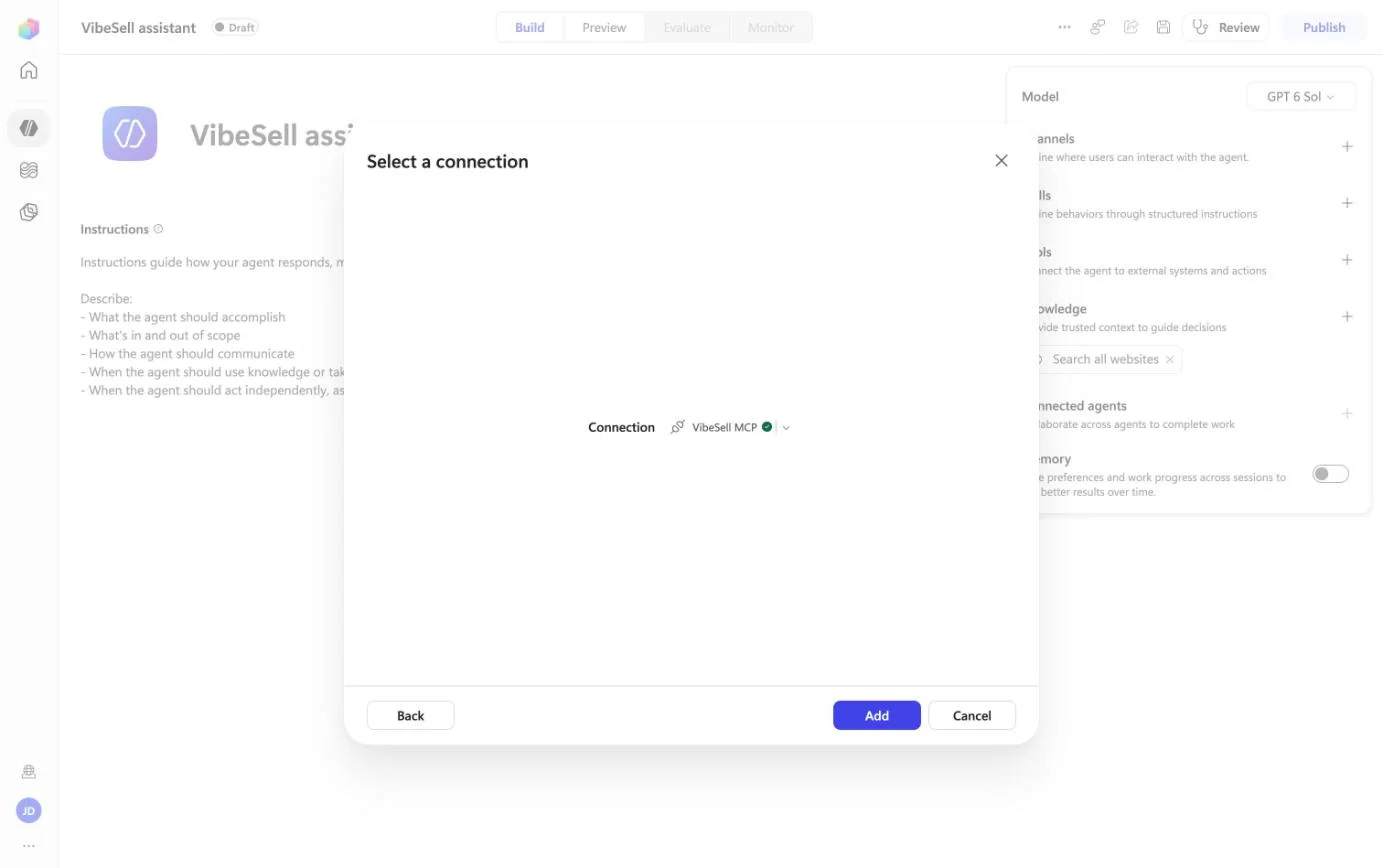
Create the connection
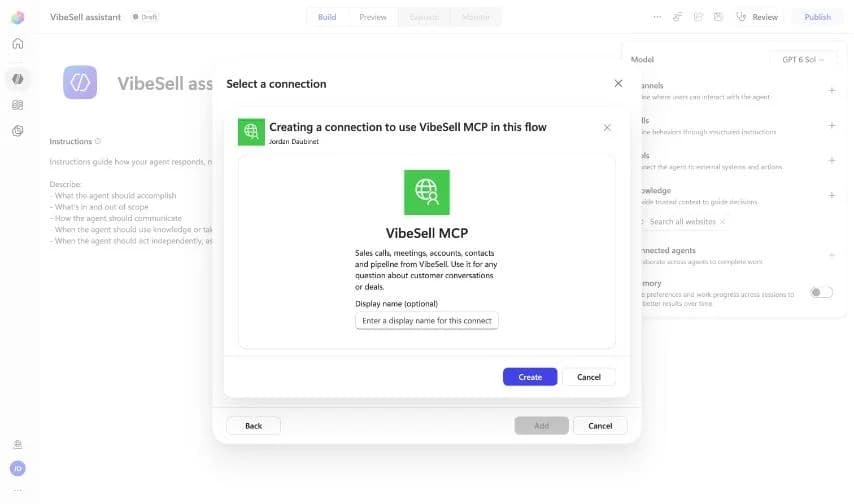
In Select a connection, open the Connection menu, choose Create new connection, then select Create. VibeSell opens in a new tab; sign in if asked.
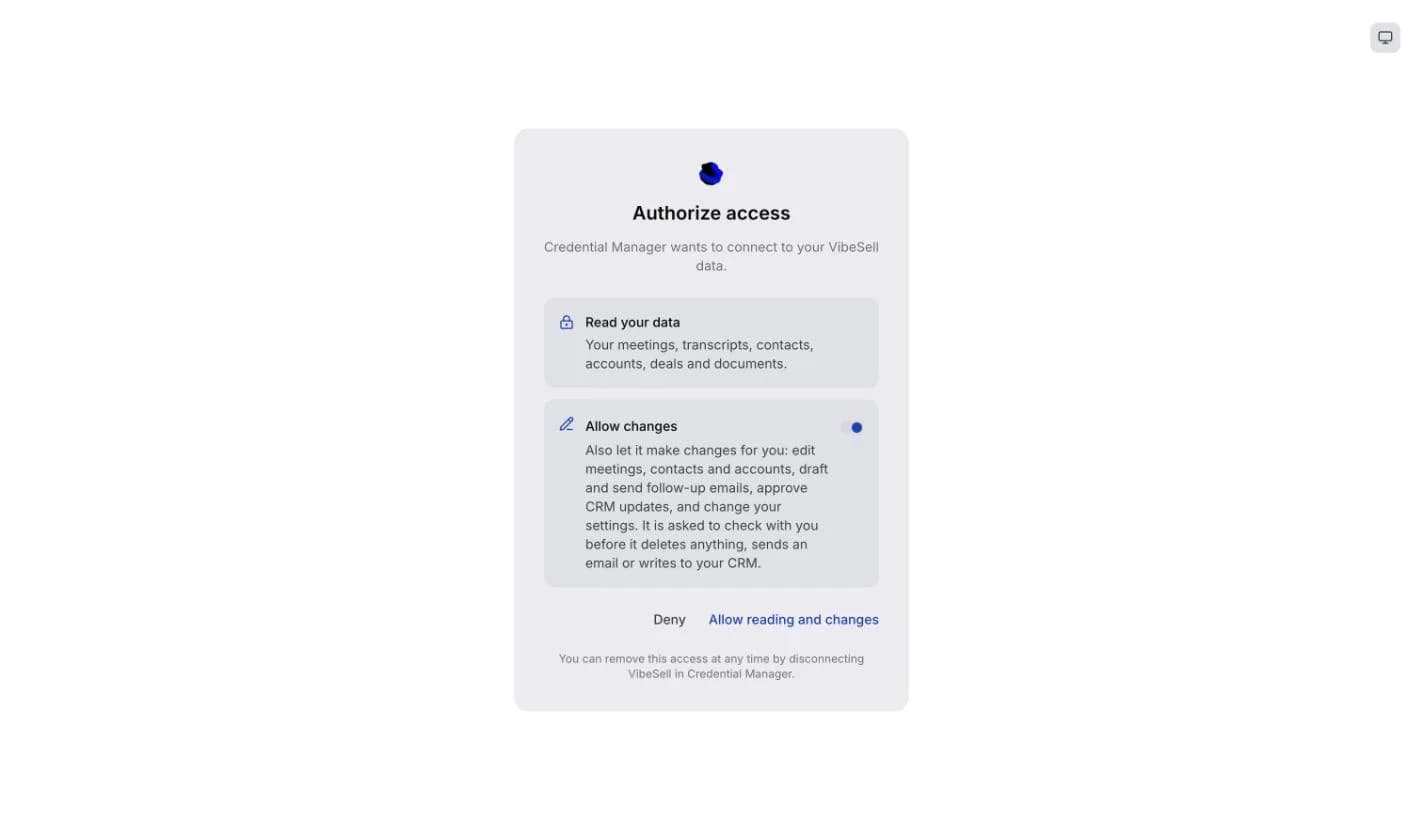
Approve access in VibeSell
Reading your meetings, transcripts, contacts, accounts, deals and documents is always granted. Allow changes is a separate switch and your call: turn it off to connect read-only. Then select the button under it. Allow it within a minute or so, or Copilot Studio gives up and you select Create again.
Add the tool to the agent
Back in Copilot Studio, the connection shows a green tick. Select Add. VibeSell now appears under Tools.
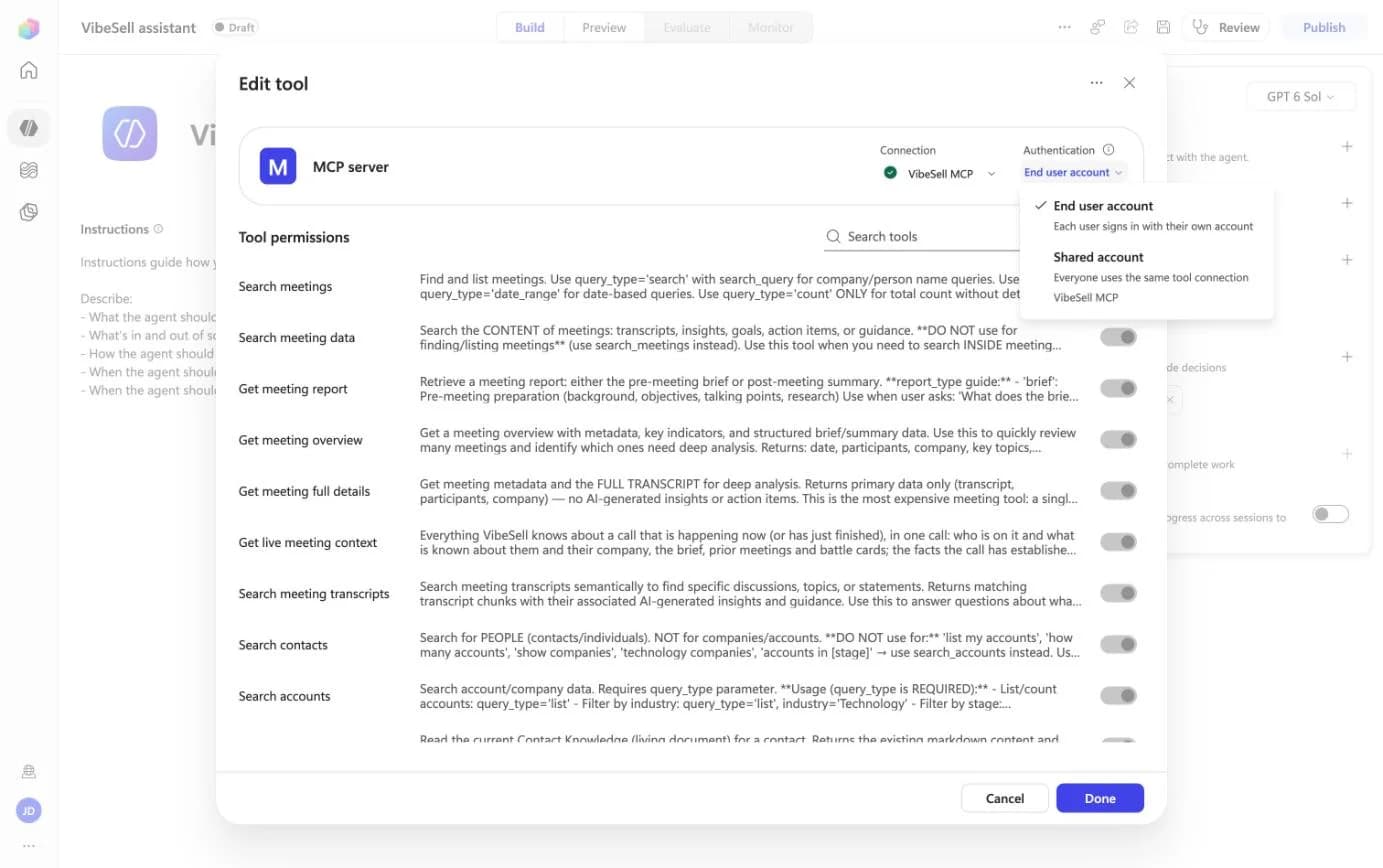
Check each person uses their own account
Select VibeSell under Tools to open Edit tool. Keep Authentication on End user account, so everyone who uses the agent sees their own VibeSell data. Shared account would give everyone the data of whoever created the connection. The list below it switches individual VibeSell tools on or off.
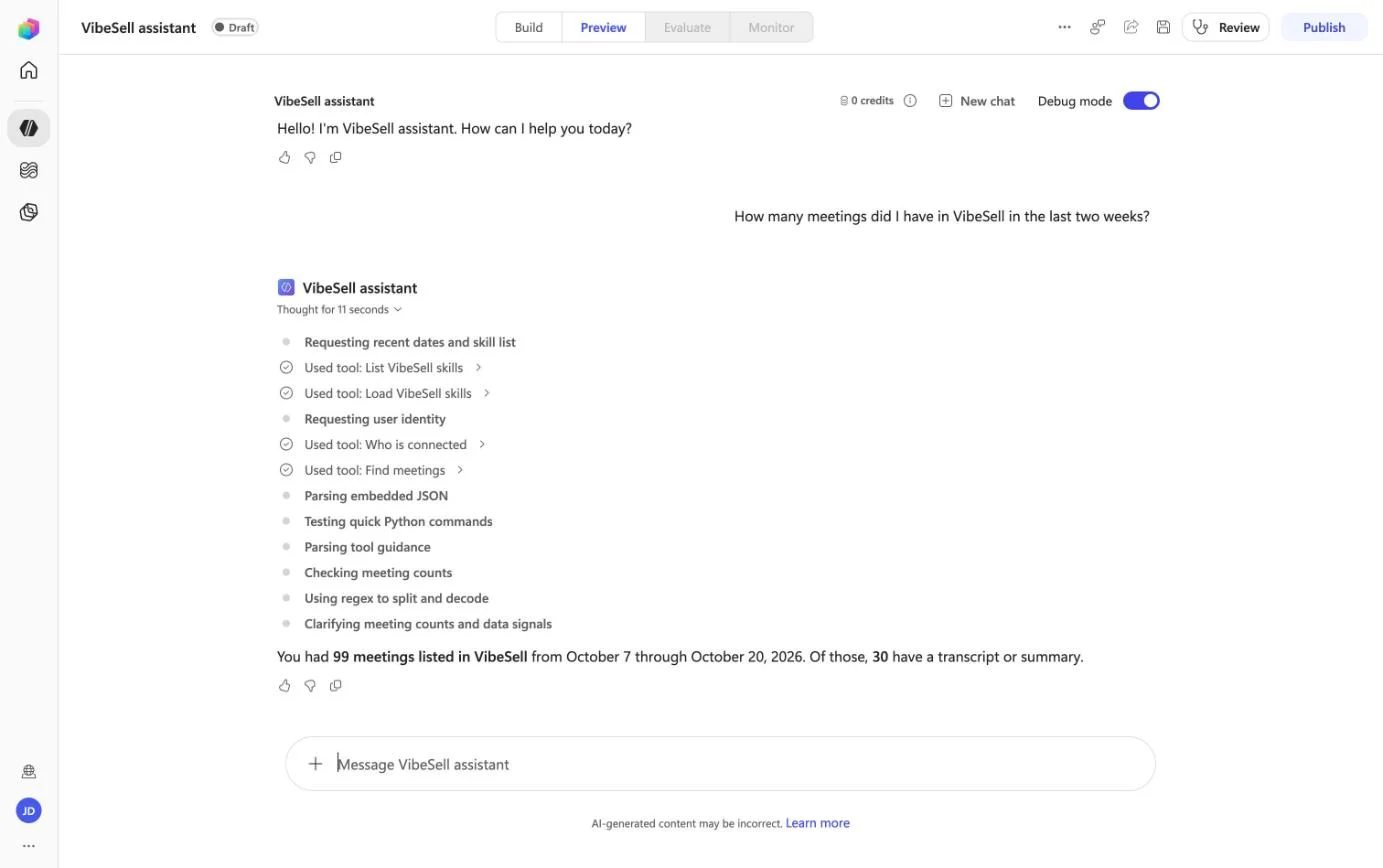
Test it
Open Preview at the top and ask something only VibeSell knows, for example: How many meetings did I have in the last two weeks? or Summarize my sales calls from the last two weeks and tell me what needs follow-up.
Sharing the agent with your team
When the agent works, select Publish and add the channels your team uses under Channels, such as Microsoft Teams or Microsoft 365 Copilot. Because the tool uses End user account, each person is asked to sign in to VibeSell the first time the agent needs it.
Choosing the agent's model
The agent's default model (GPT 6 Sol in October 2026) called VibeSell's tools reliably in our tests. If tool calls fail with a "Request validation" error, choose a different model under Model and try again; in October 2026 GPT-5.6 Reasoning failed every MCP tool call.
Example: a QBR assistant
A good use of Copilot is turning a quarter of calls into a quarterly business review. VibeSell supplies the conversations; the format lives in the agent's Instructions, so each team can shape it. For example:
You prepare quarterly business reviews for our client accounts. When asked for a QBR, use VibeSell to find every call with the account in the last quarter, the commitments we made and whether they were delivered, open risks, and what the client said about their priorities. Write it as: summary, what we delivered, what is still open, risks, and proposed next quarter. Quote the client where it helps, and link each point to the meeting it came from.
Then ask: Draft the QBR for Calderbrook Freight. The meeting with their CFO is on 22 October.
To have Copilot write the QBR into Word or PowerPoint, the person using the agent needs a Microsoft 365 Copilot licence; without one the answer stays in the chat.
What Copilot can and can't do with your VibeSell data
On a read-only connection the agent can read but not change anything; it isn't offered the tools that would. With Allow changes on, it can make the changes you can make in VibeSell, and deleting something, sending an email or writing to your CRM each need a separate confirmation. Everything is scoped to the signed-in VibeSell user.
To disconnect, remove VibeSell from the agent's Tools, or delete the connection under Connections in Power Apps. Questions or problems: support@vibesell.ai.
¿No encuentra lo que busca? Escriba a support@vibesell.ai.