

Produkt6 Min. Lesezeit
How to Connect VibeSell to Claude
Connect VibeSell to Claude with one URL and ask about your meetings, accounts and pipeline in plain language. Read-only unless you allow changes.

Jordan Daubinet

Your sales conversations already live in VibeSell. Every call, every transcript, every account record. Until now, using that history meant opening VibeSell and looking for it yourself. From today you can do this directly in Claude.
This walkthrough uses the Claude desktop app. The same steps work on claude.ai in a browser.
What the VibeSell connector does
The connector gives Claude a window into your VibeSell account, read-only by default. Claude can search your meetings, pull a transcript, look up a contact or account, read your CRM records, and open the briefs and summaries VibeSell has already written. On a read-only connection it cannot create, edit or delete anything.
If you turn on Allow changes when you connect, Claude can also act in VibeSell for you: rename or reschedule a meeting, update a contact, draft and send a follow-up email, approve the CRM updates from a call, or change a setting. Anything you can do in the app, it can do, under your account and your permissions.
It runs on the Model Context Protocol, the open standard Anthropic published in November 2024 for connecting AI assistants to external systems (Anthropic, 2024). You can add this MCP to any LLM client: Claude, ChatGPT, Gemini or others.
Everything Claude sees is scoped to you. Your connector reads your data, under your VibeSell account, with the same permissions you already have in the product.
What you need before you start
You need a VibeSell account and a Claude account on a paid plan. Custom connectors are not available on the free Claude tier. Have this URL ready, because it is the only thing you have to type:
https://api.vibesell.ai/connect
If your company is on a Claude Team or Enterprise plan, read the section near the end first. The steps are slightly different and an Owner has to go first.
How do you connect VibeSell to Claude?
You add VibeSell as a custom connector in Claude's settings, paste the URL, then approve a consent screen that VibeSell shows you. It takes about two minutes. Here is a step-by-step guide.
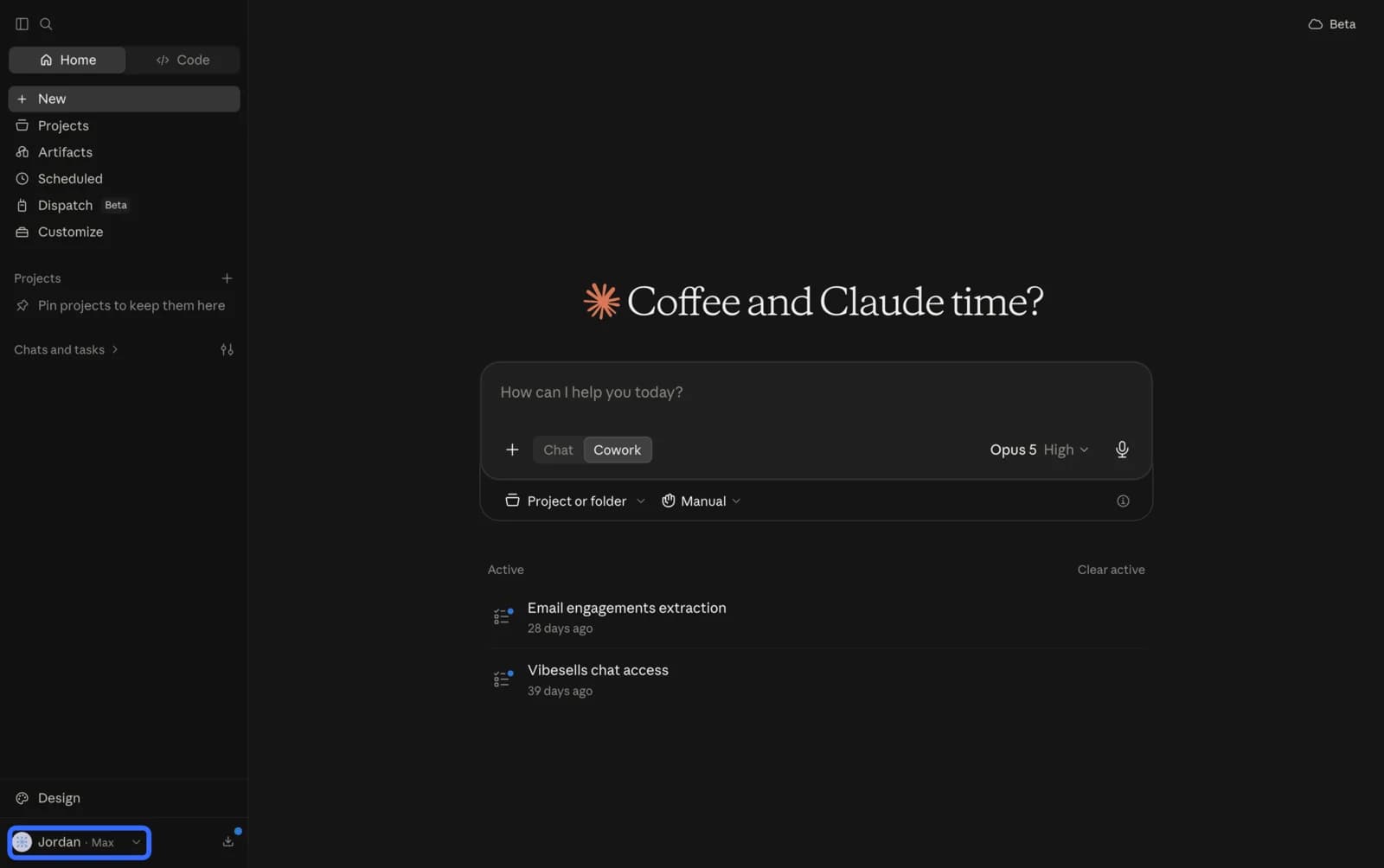
Open your account menu
Click your name in the bottom left corner of Claude.
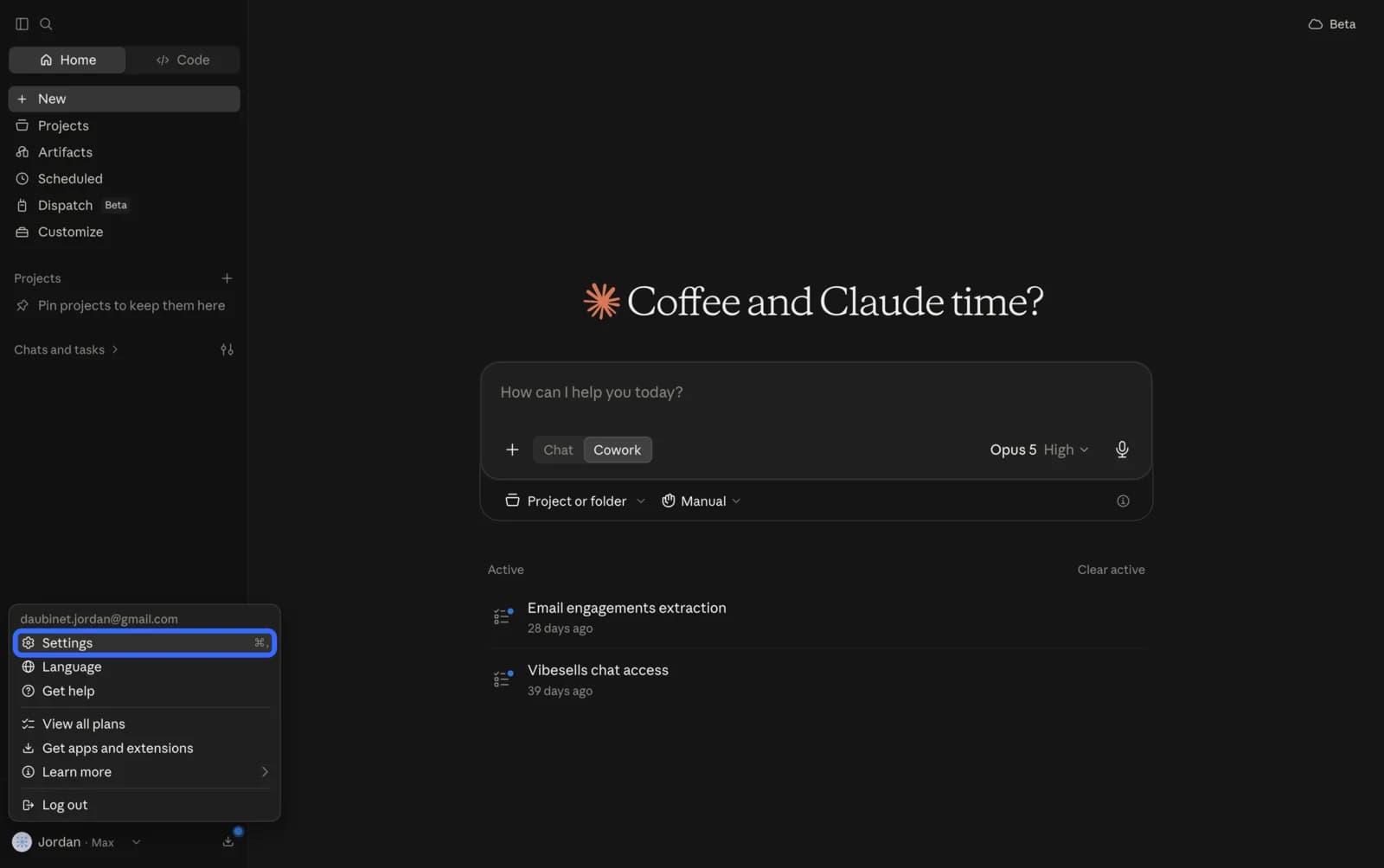
Go to Settings
Settings is the first item in the menu, or press Command and comma.
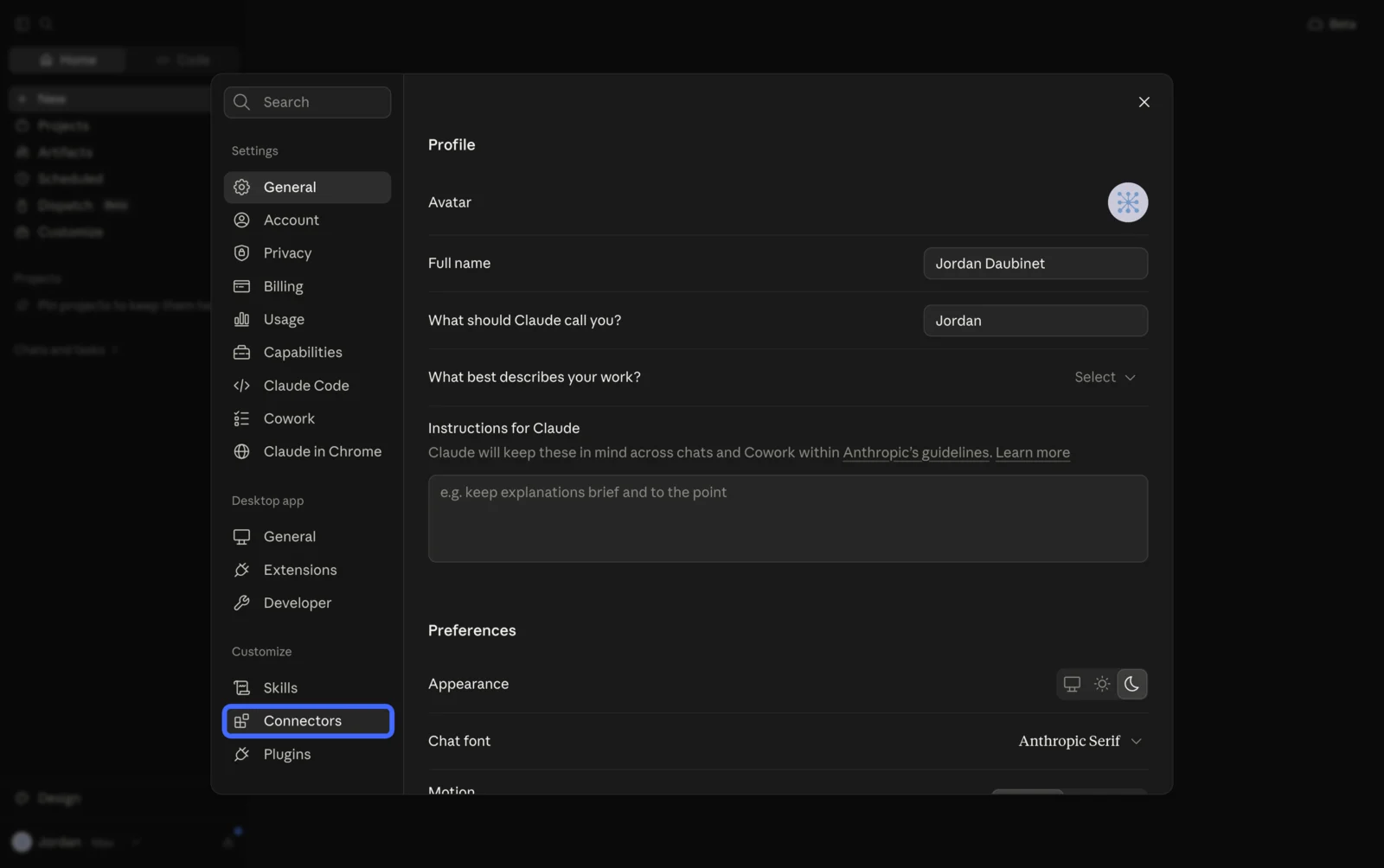
Open Connectors
In the settings sidebar, look under the Customize heading near the bottom.
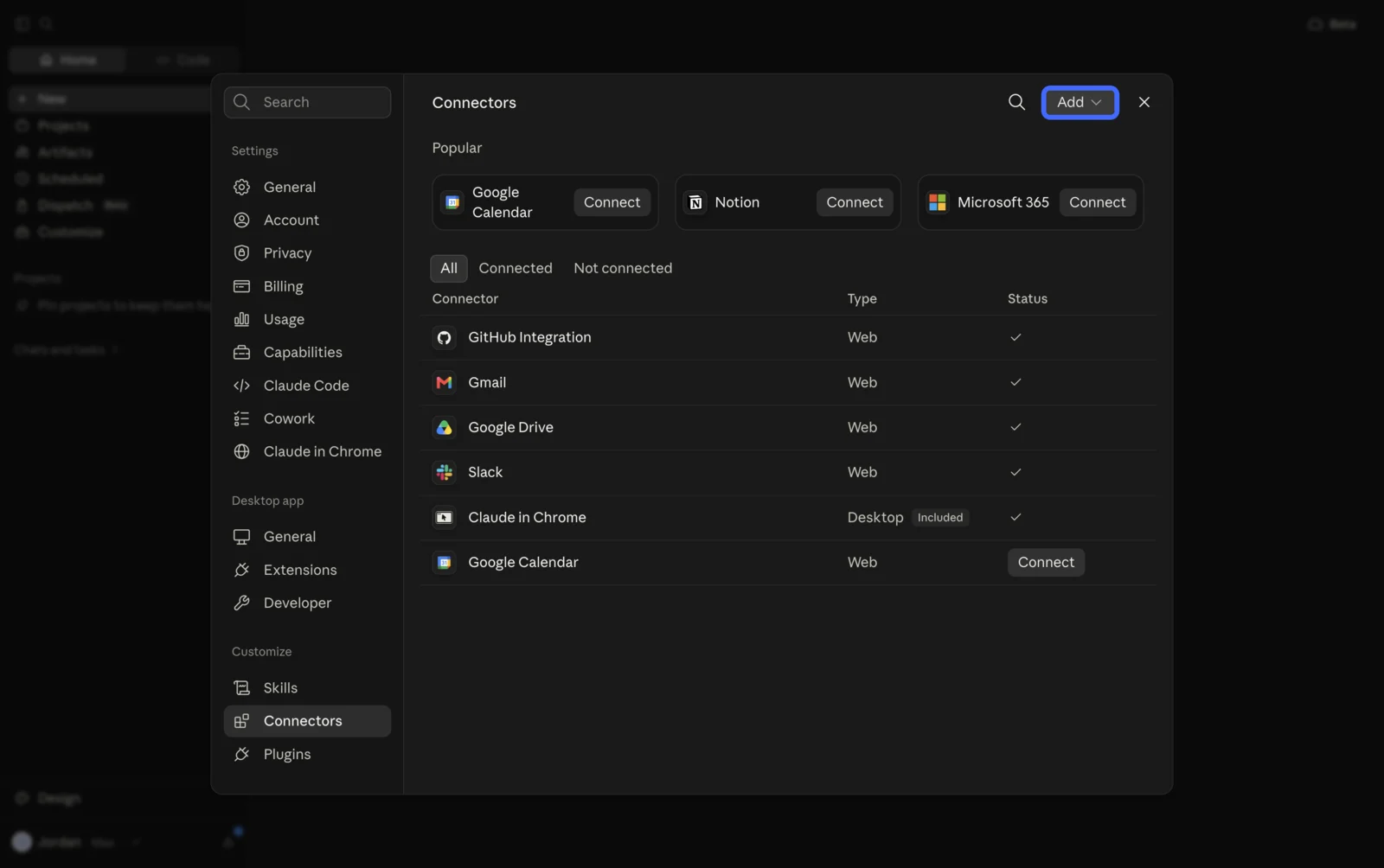
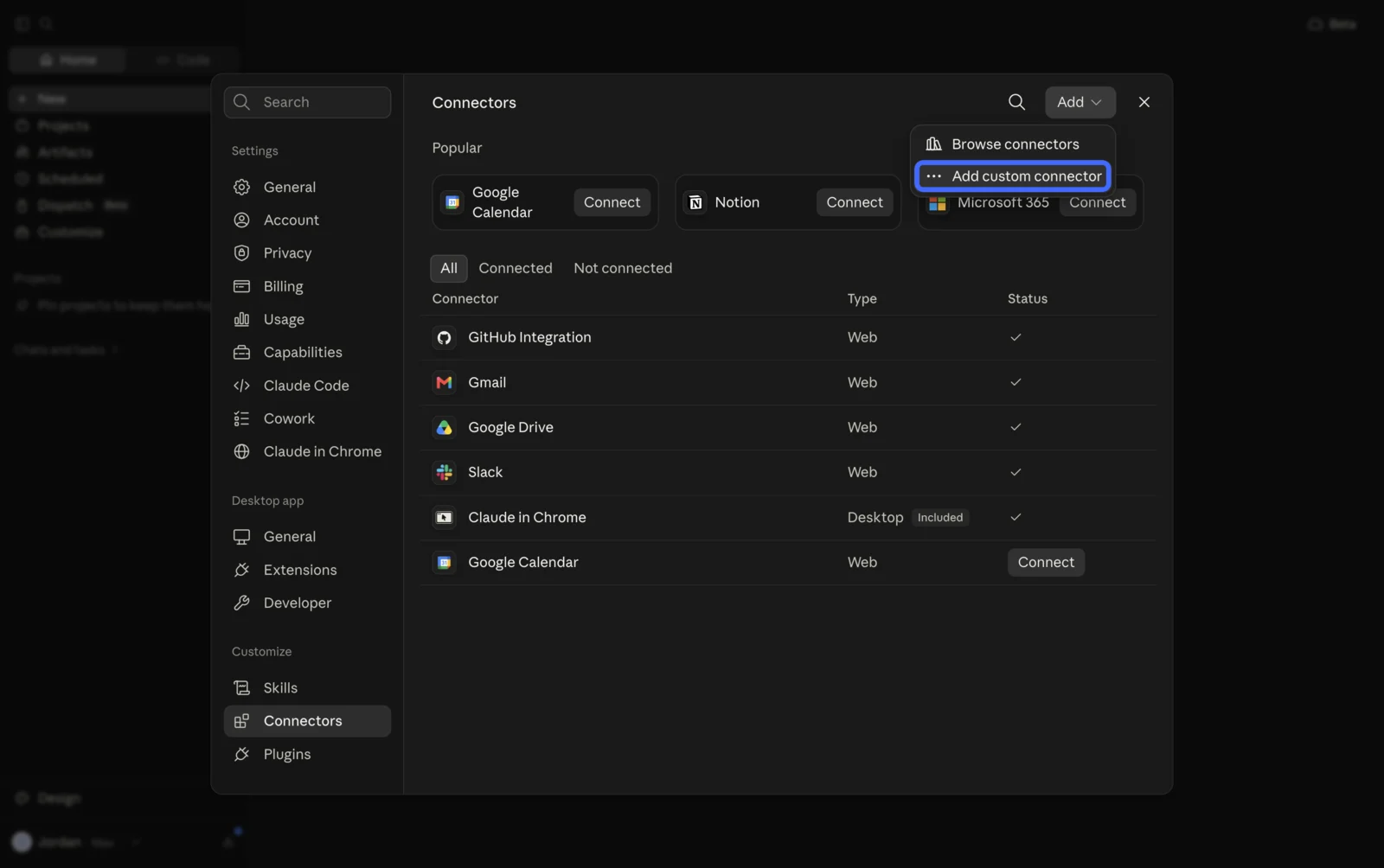
Click Add
The Add button is in the top right of the connectors panel.
Choose Add custom connector
Claude offers two options. Browse connectors shows the pre-built directory. You want the second one.
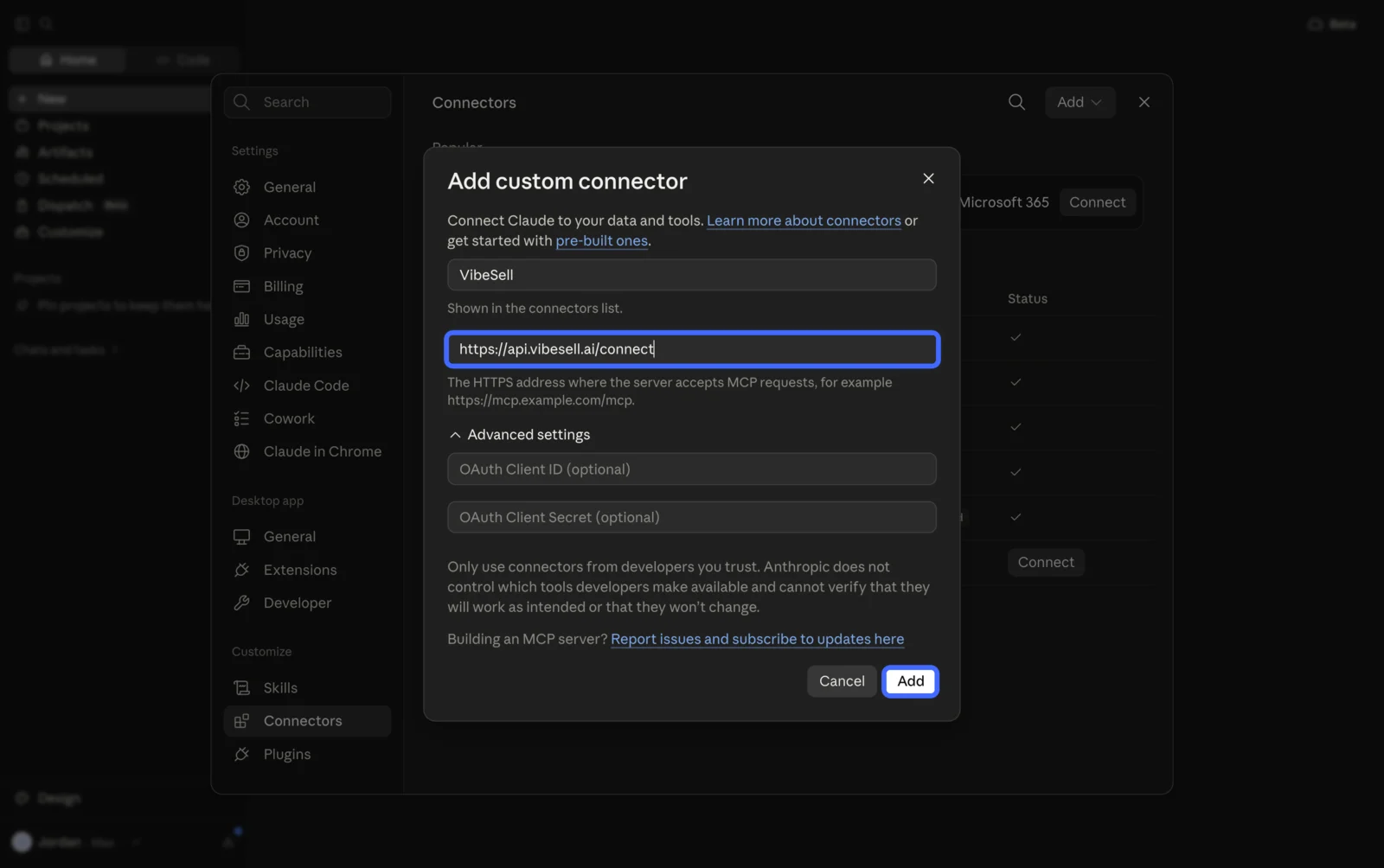
Name it and paste the URL
Call it VibeSell so it is easy to find later, then paste the connector URL. Leave the OAuth fields under Advanced settings empty, because VibeSell handles that part for you.
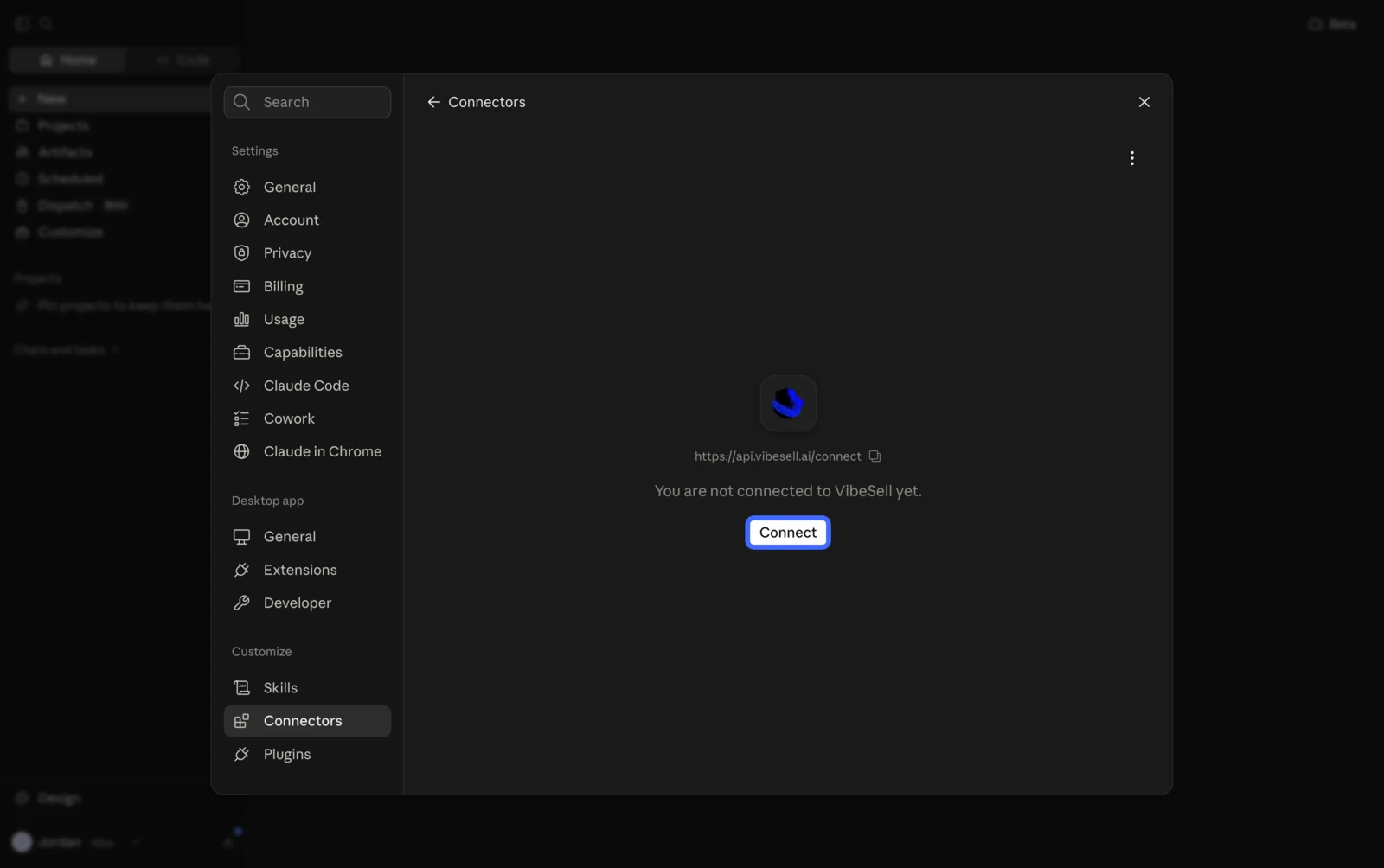
Click Connect
VibeSell now appears in your connector list, not yet connected.
Approve access in VibeSell
Claude opens VibeSell in your browser. If you are not signed in, sign in first. VibeSell then shows you exactly what Claude is asking for.
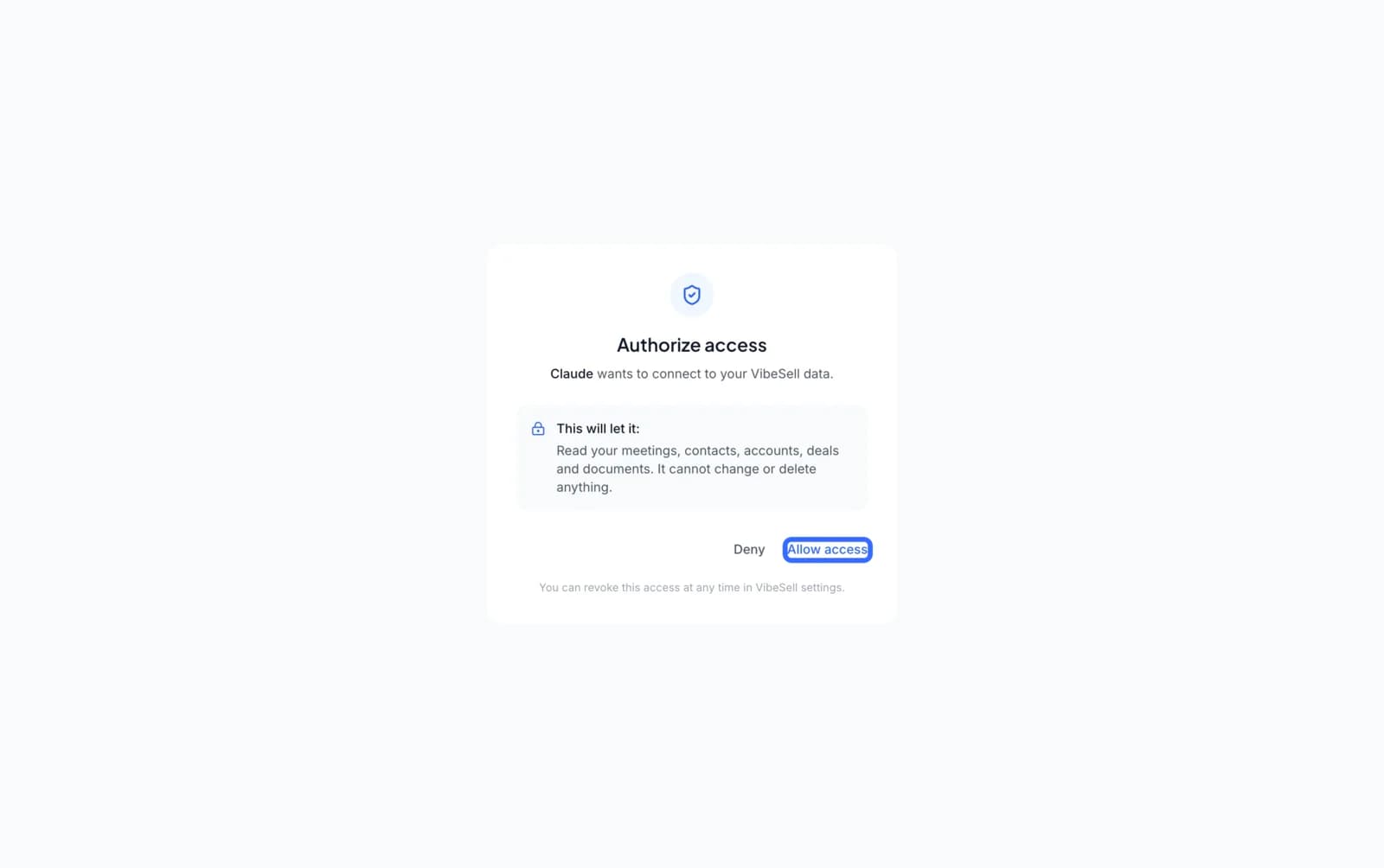
The screen has two parts. Reading your meetings, transcripts, contacts, accounts, deals and documents is always granted. Allow changes is the second part, and it is your call:
- Off: Claude reads and cannot change or delete anything. The button says Allow reading.
- On: Claude can make the changes you could make in VibeSell. It is asked to check with you before it deletes anything, sends an email or writes to your CRM.
To change your mind later, disconnect VibeSell in Claude and connect again.
Deciding when Claude can use your data
Once you approve, Claude confirms the connection and lists every VibeSell tool with a permission control for each one, grouped by whether a tool only reads or can change something. By default some tools are set to ask you every time. You can leave it that way, or set a whole group to run without prompting.

If you want Claude to work without interrupting you for approval on each lookup, open the read-only group's dropdown and choose Always allow. Those tools only read, so the worst case is Claude reading something you did not need.

What you can ask once it is connected
Claude reads the underlying meetings and records rather than guessing, so the answers come from what was actually said on your calls. Four kinds of material are available to it: the conversations themselves, the analysis VibeSell has already written, your pipeline, and your own playbook.
The conversation, not just the calendar entry
Every transcript is searchable, along with the insights, goals, action items and live guidance VibeSell captured while the call was happening. Claude can pull a single line from one call or trace a theme across months of them.
- What did the buyer at this account say about pricing, in their words?
- Find every call where a competitor came up and tell me how we handled it
- Pull the full transcript of Thursday's call and show me where the conversation turned
The analysis VibeSell already wrote
VibeSell writes a brief before each meeting and a summary after it. Claude reads both, so you are not asking it to re-derive what already exists.
- Pull the brief for tomorrow's call and tell me what changed since we last spoke
- Summarize my calls from the last two weeks and tell me what needs follow-up
- Which action items from last month never got picked up?
Your pipeline and its history
Deals, contacts and accounts, plus CRM activity read live from HubSpot or Salesforce rather than from a stale copy. Contacts also carry a knowledge document that accumulates everything learned about that person over time.
- Which of my open deals have no next meeting booked?
- Tell me everything we know about this contact before I call them
- What has moved on this account since our last conversation?
Your own playbook
Whatever you have uploaded is searchable too: your methodology, pricing sheets, ICP notes, proposals and contracts.
- Score this call against our qualification framework
- Does this account fit our ICP, and what evidence from the calls supports that?
Changes, if you allowed them
With Allow changes on, the same conversation can end in the change itself rather than a note to make it later.
- Rename tomorrow's call to "Acme pricing review" and move it to 3pm
- Approve the CRM updates from today's call with Acme, except the close date
- Draft the follow-up to the Acme call and show it to me before you send it
The connector also carries VibeSell's own skills, which are instructions for how to do a piece of sales work with this data. Claude loads the relevant one before it answers, so you get analysis shaped by how your team actually sells rather than a generic summary.
Because Claude has your other connectors at the same time, you can cross the boundary between tools. Take the follow-up items from this week's calls and draft the emails. That is the part that is hard to do in any single product.
What Claude can and cannot do with your VibeSell data
Claude reads by default. Unless you turned on Allow changes when you connected, nothing Claude does can change a record, delete a meeting, or write to your CRM through this connection. Claude is not even offered the tools that would.
With Allow changes on, Claude can make the changes you could make yourself in VibeSell. Deleting something, sending an email, writing to your CRM and turning on a public share link each need a separate confirmation, and Claude is asked to check with you before it gives one.
Access is scoped to your user account. The connector returns your meetings and your accounts, the same ones you see when you log into VibeSell. A colleague connecting their own Claude gets their own data, not yours.
You can end it whenever you want. Open Settings, then Connectors, click VibeSell, and press Disconnect. Access stops at that moment.
If your team is on a Claude Team or Enterprise plan
The steps above are for personal plans. On Team and Enterprise, custom connectors are managed for the whole organization, and only an Owner can add one (Anthropic Help Center).
An Owner goes to Organization settings, then Connectors, clicks Add, hovers Custom, chooses Web, and enters the same URL. After that, every member opens their own Customize, then Connectors, finds VibeSell in the list and clicks Connect. Each person authorizes individually, which is what keeps the data scoped per user.
If you are a member rather than an Owner and the Add custom connector option is missing, this is why. Your Owner has to add it once.
Also works in Claude Code and Cursor
The connector speaks a standard protocol, so it is not limited to Claude's apps. If your team works in Claude Code or Cursor, VibeSell connects there too using a personal access token instead of the browser flow. Tokens are read-only unless you ask for one that can make changes. Get in touch and we will set you up.
VibeSell already captures what happens in your sales conversations. Connecting it to Claude means you can ask about any of it in the place you are already working. See what VibeSell captures on every call in why we built VibeSell, or check pricing to get started.


